![Oculo Logo_Logo Full_Green_L.png]](https://help.oculo.ai/hs-fs/hubfs/Oculo%20Logo_Logo%20Full_Green_L.png?height=37&name=Oculo%20Logo_Logo%20Full_Green_L.png)
Unlike a standard Issue photo, a 360° image can be navigated interactively on the platform - you can spin around, zoom in, and inspect the full surrounding space from a single capture point.
When would I use this?
Single 360 images can be useful to capture evidence in areas that are difficult to access during a full scan - eg ceiling voids, or service risers. They can also be taken whilst static, tripod mounted, and after clearing an area - to get higher resolution images.
- Firestopping inspections
- Room by room handover documentation
- Building safety evidence - eg insulation of an entire area in one image
- Highlight an 'area-wide' issue, such as housekeeping or water ingress
What you'll need
- A supported 360 camera
- The Oculo mobile app installed on your phone
- A tripod (recommended for best image quality and stability)
- A 360 light source if capturing in dark or enclosed spaces such as ceiling voids (eg Bushman Halo)
Capturing a 360° Issue from the mobile app
- In the Oculo mobile app, ensure you have the correct site selected, then select Issues in the bottom menu, then + Create Issue.
- Select your floor plan from the dropdown, then move the plan behind the pin until it is in the correct location. Click Continue.
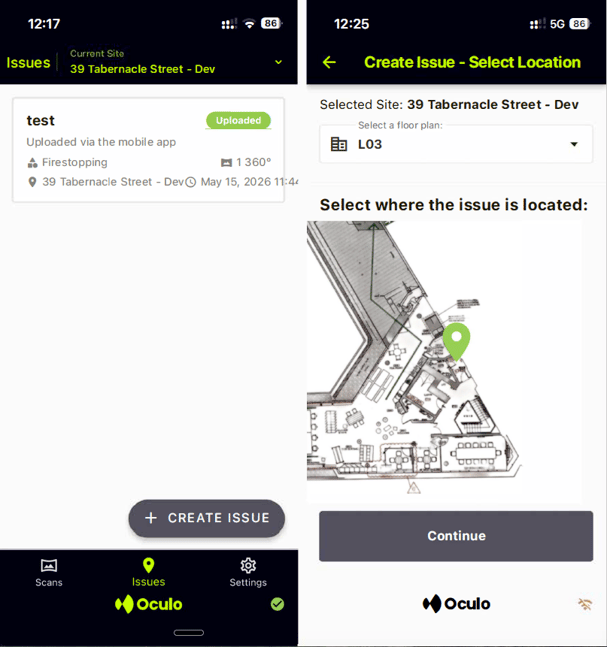
- Select Capture 360°, select and connect to your camera (ensuring it is powered on).
- You will be shown a preview from the camera, which you can navigate by swiping on your screen. Once you are happy with the preview, capture the image using the photo shutter button bottom centre.
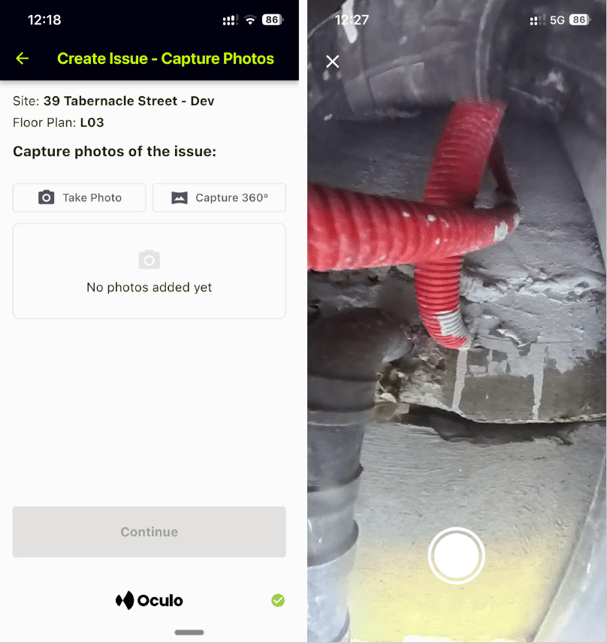
- You will see a thumbnail preview, clicking it will open a full screen preview for you to confirm you are happy before saving. Once happy, click Continue.
- Add a title, description and category, then click Save Issue.
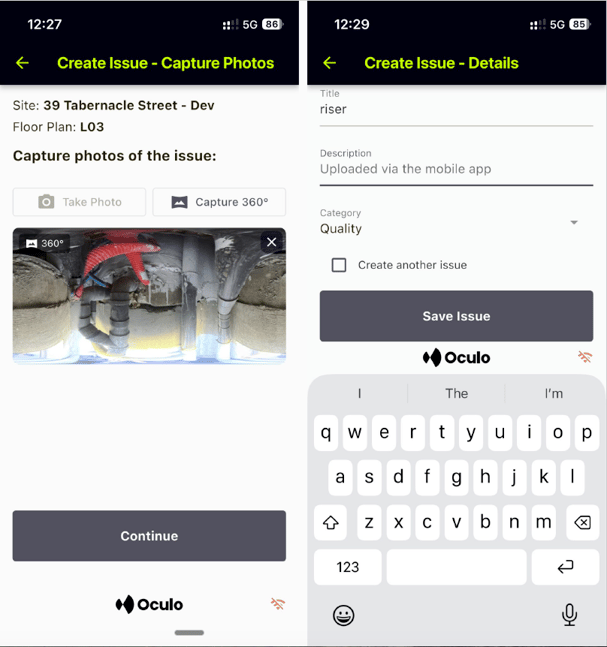
- The photo will automatically get uploaded from your phone, you can see its status on the mobile app. Once the indicator says Uploaded, you can view the Issue from the web platform. If it is stuck at Uploading, you may need to connect to a Wifi network to complete the upload.
Reviewing 360° Issues on the platform
360° Issues appear in the Issue list and Issue floor plan view alongside all other Issues. You can identify them by their 360° image thumbnail.
Use the category filter in the Issue list to show only the Issues you need to review - for example, filtering to "Fire-stopping" or to a particular Issue creation date to work through a single inspection batch.
Click a 360° Issue in either view to open the side window, where you will see the interactive 360 viewer. You can:
- Click and drag to spin around the full 360° space
- Zoom in using mouse scroller
- Toggle between the interactive 360° view and a flat panoramic image of the full frame -useful for quick scanning a whole image or for including in reports
- Resize the side window, by clicking and dragging the 6 dots in the lower left corner of the image.
Including 360° Issues in reports
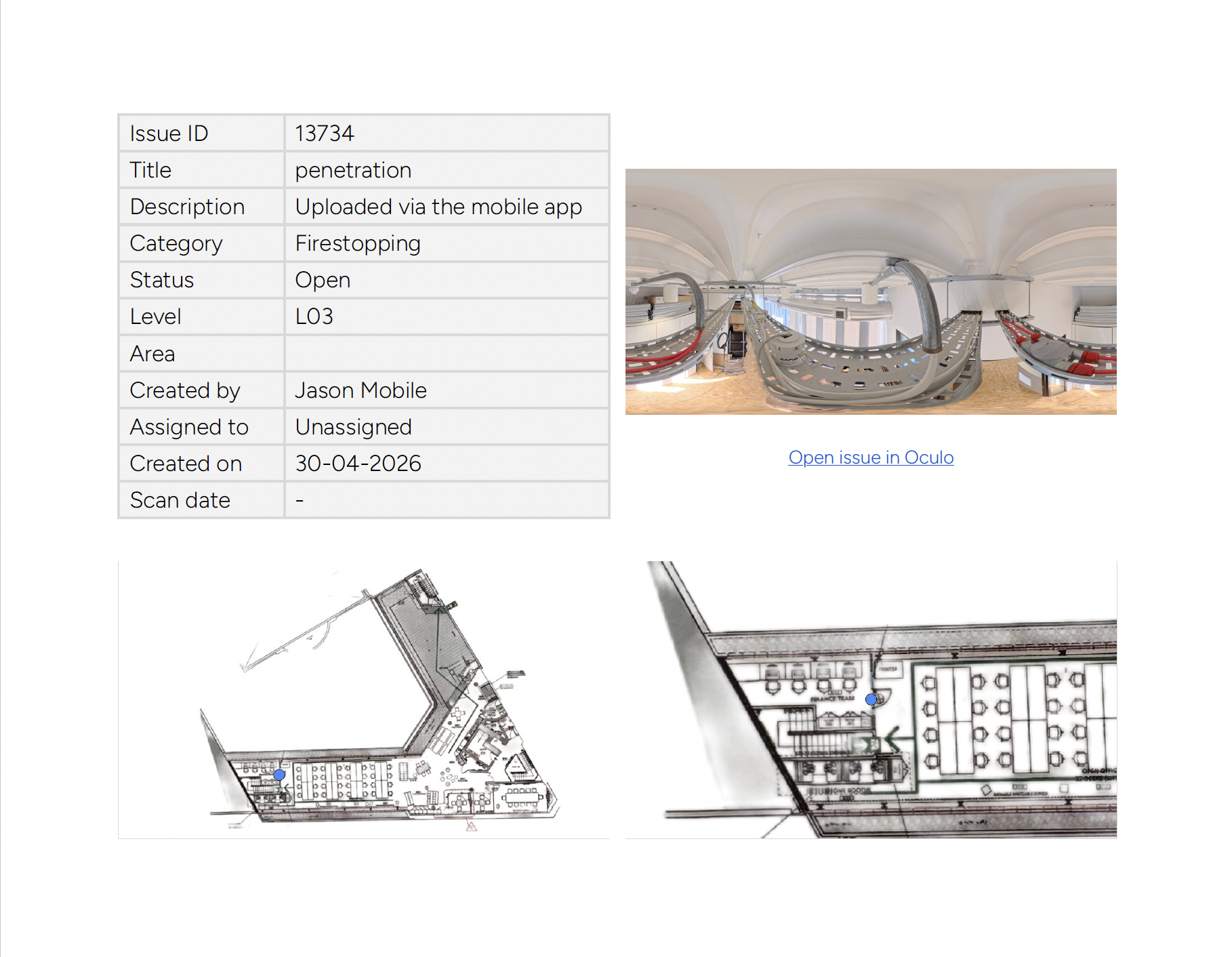
When you generate an Issue report, 360° Issue images are included as flat panoramic images - one image per page alongside the Issue location on the floor plan, in the same way as a mobile photo or screengrab image.
Reach out to help@oculo.ai if you have any questions about 360° Issues or need help getting started.