![Oculo Logo_Logo Full_Green_L.png]](https://help.oculo.ai/hs-fs/hubfs/Oculo%20Logo_Logo%20Full_Green_L.png?height=37&name=Oculo%20Logo_Logo%20Full_Green_L.png)
When would I use this?
- You want to see what changed in a specific area between two site walks
- You are checking whether work that was open at a previous visit has since been closed up
- You want to compare progress over time
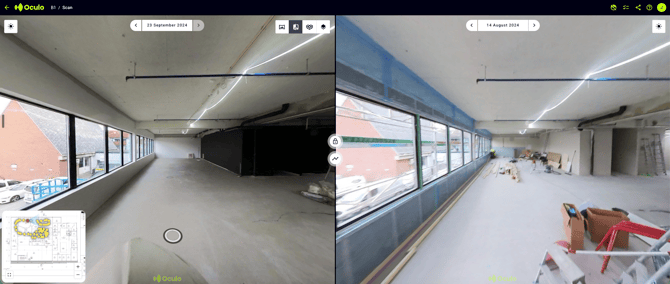
Overview
Comparison Mode is a view inside the Scan Viewer. Instead of one 360 scene, you get two panes side by side, each showing a different scan date for the same location. The left and right dates are set independently, so you can compare any two visits you have on record.
The two panes stay linked as you navigate. When you move to a new location on one side, the other side moves to the matching location on its own scan date. That means you can walk a route through the building once and see both dates the whole way.
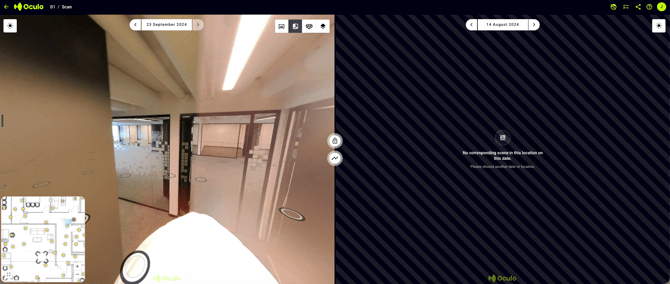
Because site walks do not always follow exactly the same route, some locations will exist on one date and not the other. The viewer tells you where those gaps are before you navigate into them, using indicators on the mini-map and on the floor navigation circles.
How to use it
Entering Comparison Mode
- Open the project in the Scan Viewer.
- Click Comparison Mode.
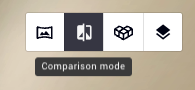
- The window splits into two panes, each showing a different scan date.
Changing the scan dates
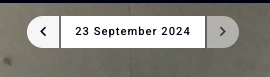
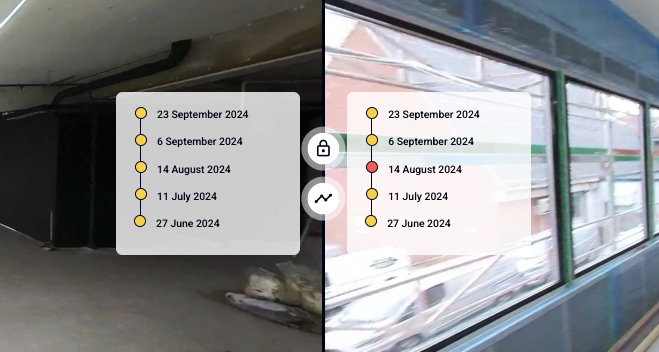
You can change the comparison date on the left pane and the right pane independently, so you can set up whichever two scans you want to compare. You can do this from the date picker at the top of each pane, or from the timeline viewer (by clicking a date, or the timeline button on the pane seam.
Navigating with the mini-map
The mini-map sits in the bottom left of the left-hand pane. You can zoom in and change level on it. The path it shows is the scan path of the scan on the left pane.
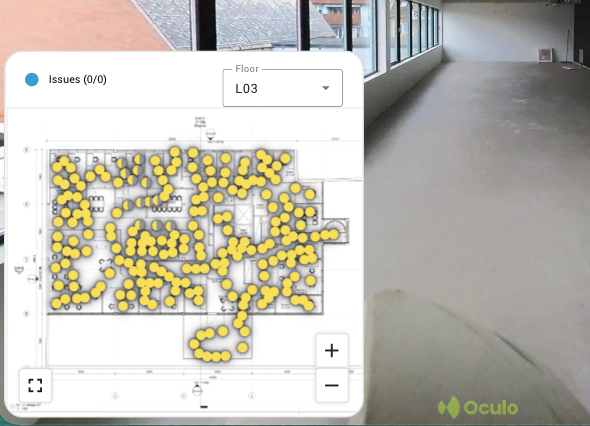
Click any yellow dot on the mini-map to jump to that location. The left pane moves to that scene, and the right pane moves to the matching scene from its own scan date.
Note: The mini-map plots the left-hand scan's path only. If the right-hand scan covered areas the left-hand scan did not, those will not appear as dots on the mini-map.
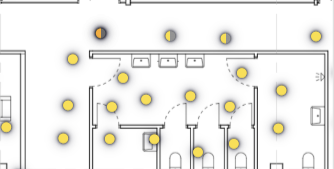
Full yellow dots indicate that there is a corresponding scene from the scan on the right. If there is no corresponding scene, this is indicated by a half yellow, half grey dot. You can still navigate to that location, but no image will be shown in the right pane - until you choose another location or another date.
Navigating with the floor navigation circles
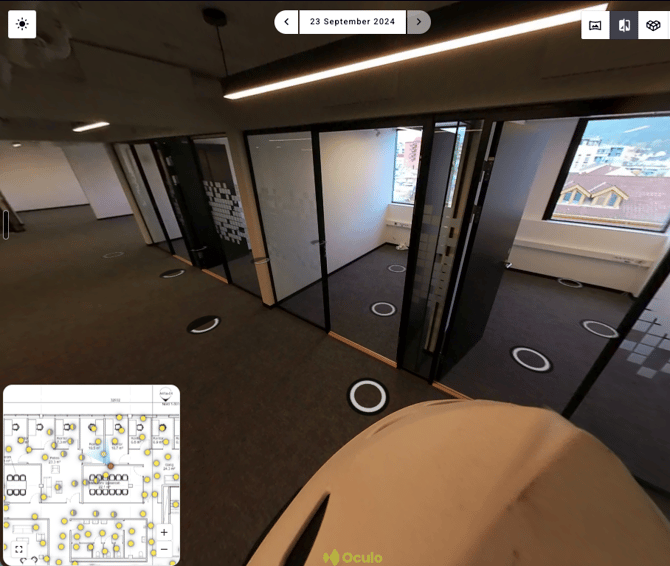
Hover over either pane and the floor navigation circles appear on the ground, as they do in the standard Scan Viewer. Click one to move to that scene.
Each side shows its own path: the circles on the left are the route of the left-hand scan, and the circles on the right are the route of the right-hand scan.
White and black ring navigation circles indicate that there is a corresponding scene from the comparison scan. If there is no corresponding scene, this is indicated by a half black circle. You can still navigate to that location, but no image will be shown in the right pane - until you choose another location or another date.
Things to bear in mind
- Coverage depends on the site walk. Comparison Mode can only show you what was captured. If a scan did not cover the same areas, they cannot be compared.
- The mini-map follows the left pane. It plots the left-hand scan's path, not a combined path of both scans.
- The two panes are linked, not identical. Moving on one side moves the other side to the closest matching location on its own date. Small differences in exactly where the camera stood between visits are normal.
- The half-shaded indicators are a warning, not a block. You can still click into a location with no match on the other date; you will just get the "no corresponding scene" message on that side.
Need help? Contact help@oculo.ai if you have any questions about side-by-side Comparison Mode.