![Oculo Logo_Logo Full_Green_L.png]](https://help.oculo.ai/hs-fs/hubfs/Oculo%20Logo_Logo%20Full_Green_L.png?height=37&name=Oculo%20Logo_Logo%20Full_Green_L.png)
When would I use this?
- You don't want to keep switching between Oculo and Autodesk platforms.
- You want Autodesk team members to benefit from Oculo data, without teaching them to navigate a second application.
- You have an established workflow in Autodesk that can benefit from quick access to Oculo data.
Overview
The Oculo Partner Card is an embedded window into Oculo that sits on your Autodesk dashboard. Once you've added it and pointed it at your site, the card shows a live, interactive Oculo view: you can move through the 360° scan, use side-by-side comparison, view the BIM comparison and open the floor plan menu, all inside Autodesk.
Adding the card is a two-minute job you do yourself on your own dashboard. There's no Oculo-side setup and no involvement from Oculo Support. The one thing you need in advance is the URL of the Oculo site you want the card to show, which you get simply by opening that site in Oculo and copying it from your browser.
Before you start, you'll need an Oculo account and at least one completed scan of your project, since the card has nothing to display until there's a scan to show. If you're not yet comfortable moving around in Oculo, the Oculo quick tour is worth a few minutes first.
Add the Oculo Partner Card
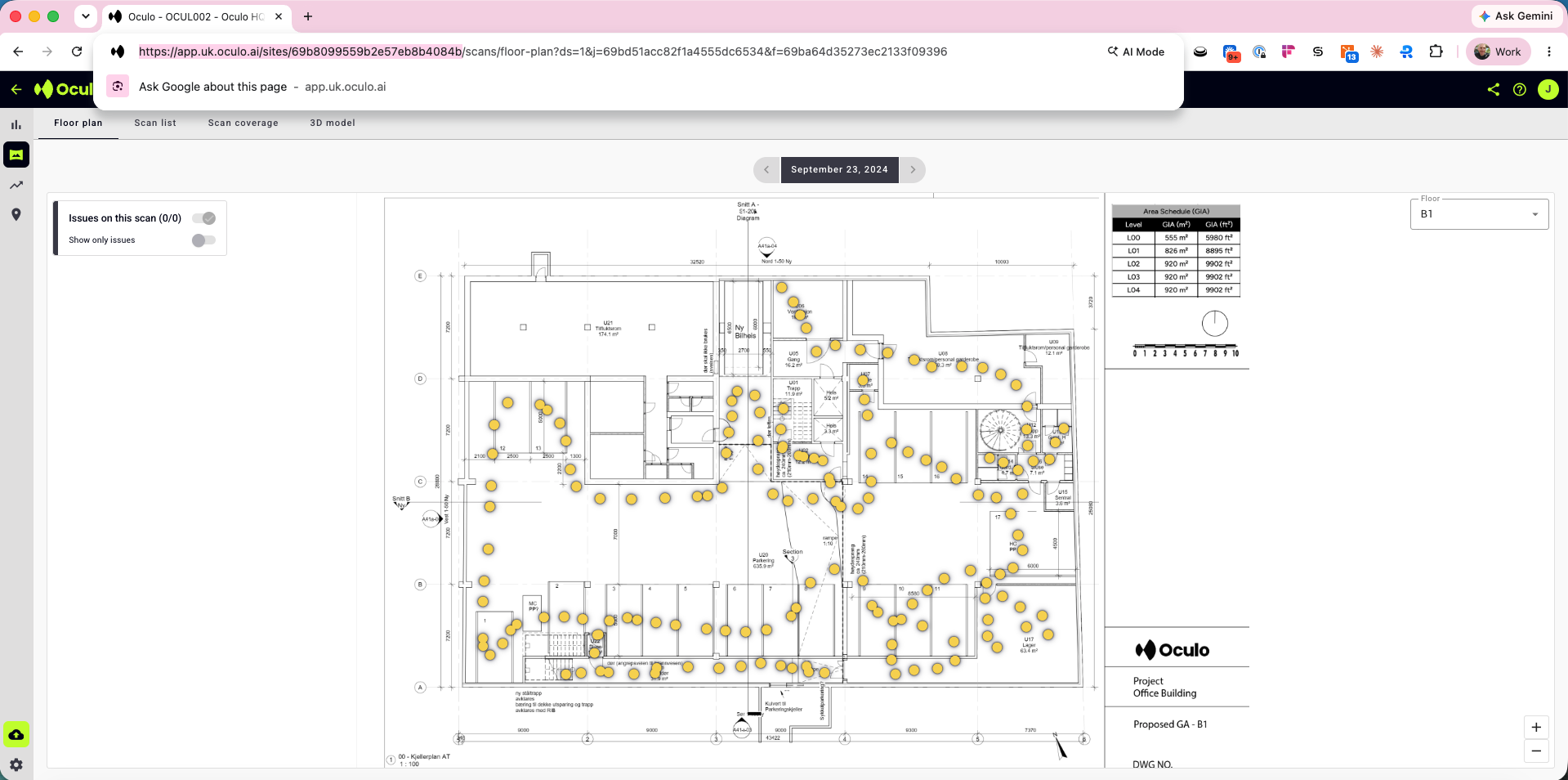
Step 1: Copy your Oculo site URL
- Log in to Oculo and navigate to the site you want the card to show.
- Copy the URL from your browser's address bar.
Tip: The card opens to whatever the URL points at, so navigate to the view you actually want people to land on before copying. Copying from your site's home view gives you a general starting point; this is the part of the URL including the site ID (after sites/).
Step 2: Add the card in Autodesk
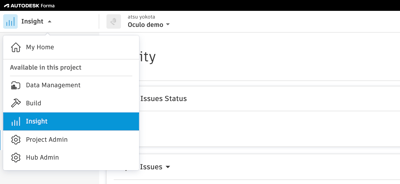
- In Autodesk, go to the dashboard where you want the card. On the Insight dashboard, use the product picker and select Insight.
- Decide whether you want to add Oculo to an existing Dashboard, or you can create a dedicated Oculo Dashboard by clicking the + icon to create a new dashboard
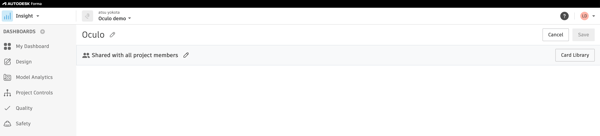
- Click Customize at the top right of an existing Dashboard, or click Add Cards on a brand new one
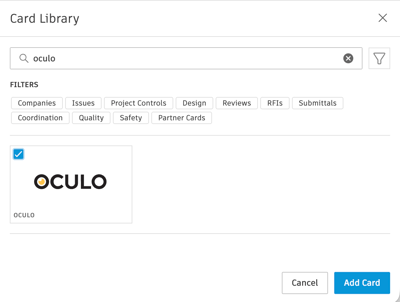
- Open the Card Library, and search for Oculo, tick it and click Add Card.
- You will dind the newly added card on your dashboard. It normally appears at the bottom. Click Configure.
- Paste your Oculo URL into the Partner URL field and click Save.
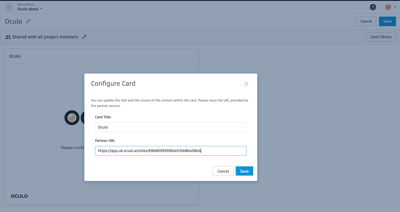
- You will see Oculo load up in the card - you will need to Sign In. If your site is already integrated with Autodesk, use Continue with Autodesk to sign in.
- Click Save again at the top right of your dashboard.
Note: you can use the Autodesk partner card even if your site is not integrated with Oculo, you will just need to use Oculo login credentials at the Sign in page.
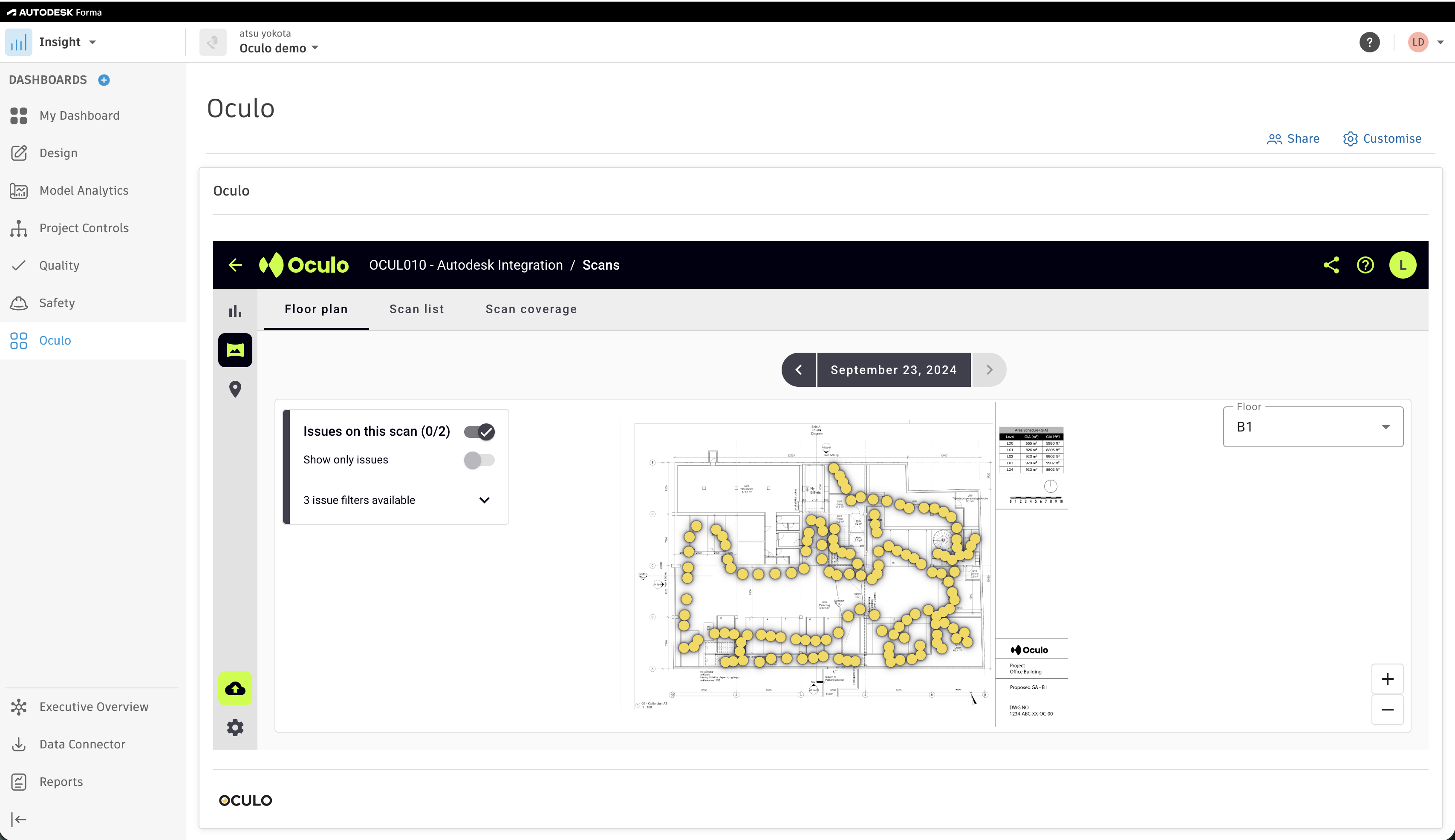
What you can do from the card
Once configured, the card is a working Oculo view, not a static screenshot. From inside it you can:
- Navigate the 360° view
- Use side-by-side comparison mode to compare captures
- View your BIM comparison
- Create Oculo or Autodesk Issues
Clicking the Oculo logo in the bottom left of the card opens the Oculo platform in a new tab.
Related articles
- Oculo quick tour - the basics of navigating Oculo, worth reading first if the platform is new to you
- How do I connect Oculo to Autodesk Forma - the full account-level integration, which is separate from and not required for the Partner Card
- Using the Oculo <> Autodesk integration - guide on how to use the integration for signing in, and creating and managing Issues.
Need help? Contact help@oculo.ai if you have any questions about the Oculo Partner Card.