![Oculo Logo_Logo Full_Green_L.png]](https://help.oculo.ai/hs-fs/hubfs/Oculo%20Logo_Logo%20Full_Green_L.png?height=37&name=Oculo%20Logo_Logo%20Full_Green_L.png)
Important - this is a publicly accesible link
Anyone who receives the link can view the scan and share the link further. Only use it for content you are comfortable being seen outside your organisation. Links can be revoked at any time if you need to withdraw access.
To provide a curated set of scans to an Oculo user, you may want to use Scan Sharing Groups instead.
When would I use this?
Shareable links are designed for situations where you need to give someone a quick, read-only view of a scan without setting them up as an Oculo user. Common uses include:
- Sharing a pre-construction condition survey with a client.
- Providing a handover scan to a client at project completion.
- Including a scan link in a tender document or proposal.
- Marketing walkthroughs.
-
Sharing a single scene with a subcontractor to discuss a specific issue.
**Example single scene sharing link**
**Example full scan sharing link**
Need to share multiple scans securely?
Scan sharing groups let you share a protected selection of scans with someone who has an Oculo account. Use shareable links for quick, one-off external sharing - use scan sharing groups for ongoing, controlled access.
Who can create shareable links?
You need scan module permissions of Add/Edit or above (Add/Edit, or Admin) to generate and manage shareable links. Users with Scan View only will not see the share button. If you cannot see it, please speak to your account admin.
Creating a shareable link
You can create a link from two places: the floor plan view of a scan, or from inside the 360° viewer. The viewer also gives you the option to share a single scene rather than the full scan.
Option A - Share a full scan (from the floor plan view)
1. Open the site and navigate to the floor plan view of the scan you want to share.
2. Select Share → Create Shareable Link.
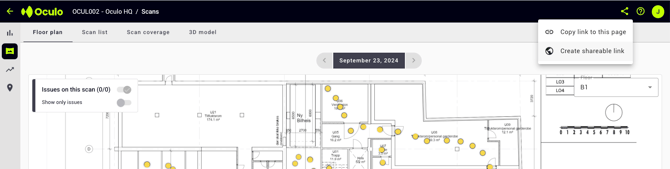
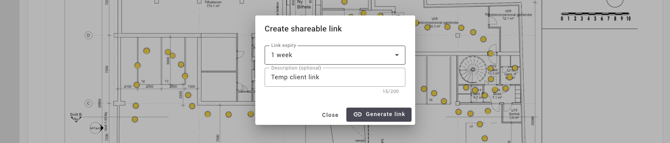
3. Choose an expiration date for the link:
-
- 1 day
- 1 week
- 1 month
- Custom date - pick any date up to 12 years from today, either by typing or using the calendar.
4. Optionally add a description - this is an internal reference note to help you identify the link later. It is not shown to the recipient.
5. Select Generate Link, then Copy and share it with whoever needs access.
Option B - Share a full scan or single scene (from the 360° viewer)
1. Open the 360° viewer for the scan, navigate to the scene you want to share.
2. Select Share → Create Shareable Link.
3. Choose whether to share the full scan or this scene only.
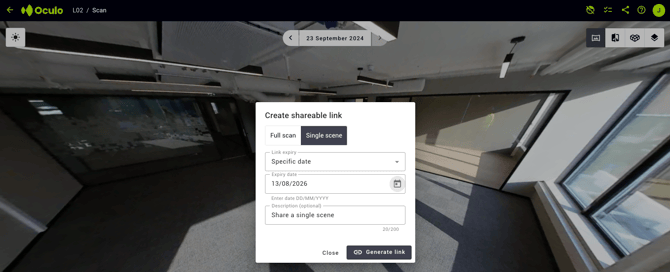
4. Set an expiration date, add an optional description, then generate and copy the link.
What will recipients see?
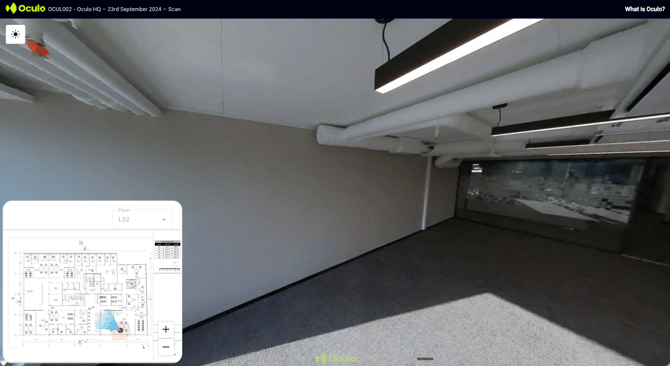
The shared view gives recipients a read-only window into the scan. They can navigate the 360° imagery but cannot access any other features acceible to logged-in Oculo users. The table below shows the difference between a full scan link and a single scene link.
| What recipients can see | Full scan link | Single scene link |
| Site name & scan date | ✅ | ✅ |
| Scan description | ✅ | ✅ |
| 360° viewer | ✅ | ✅ |
| Floor plan / level map | ✅ | ✅ (current level only) |
| Level selector | ✅ | ❌ |
| Navigation circles | ✅ | ❌ |
| Side-by-side comparison | ❌ | ❌ |
| 3D model overlay | ❌ | ❌ |
| Issues | ❌ | ❌ |
Oculo's logo and a "What is Oculo?" link are shown in the shared view - both link to the Oculo website.
Managing your shared links
Finding links you've created
Any scan that has an active shareable link is flagged in the Scan List. Selecting the indicator takes you to the Shared Scans view for that scan. You can also reach the full list of all shared links at any time via Site Configuration → Shared Scans.
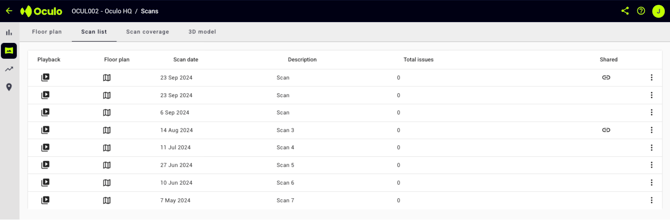
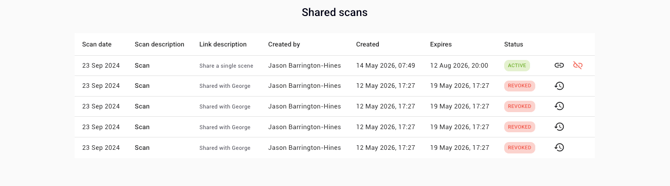
You can copy a new link by clicking the link icon in the scan list.
Generating additional links for the same scan
You can create multiple shareable links for the same scan - for example, one for a client with a longer expiry and one for a subcontractor with a shorter one. Each link is managed independently.
Revoking a link
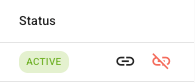
To withdraw access before the expiration date, open the Shared Scans view, find the link, and select Revoke (red icon). The link immediately stops working and recipients will see a message asking them to request a new one. You can restore a revoked link if needed by clicking the Restore icon - it will become active again with its original expiry.
Expired links
Once the expiration date passes, the link is marked as Expired and stops working automatically. Expired links remain visible in the Shared Scans view for your records.
Need help?
Contact help@oculo.ai if you have questions about scan sharing or need help revoking a link.