![Oculo Logo_Logo Full_Green_L.png]](https://help.oculo.ai/hs-fs/hubfs/Oculo%20Logo_Logo%20Full_Green_L.png?height=37&name=Oculo%20Logo_Logo%20Full_Green_L.png)
1. Downloading the app
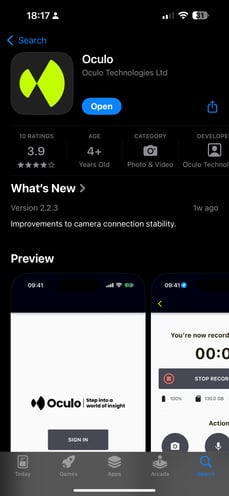
- To download the app - visit the Apple App Store or Google Play, search for "Oculo", and download to your device. Alternatively scan this QR code on your mobile.

2. Signing in
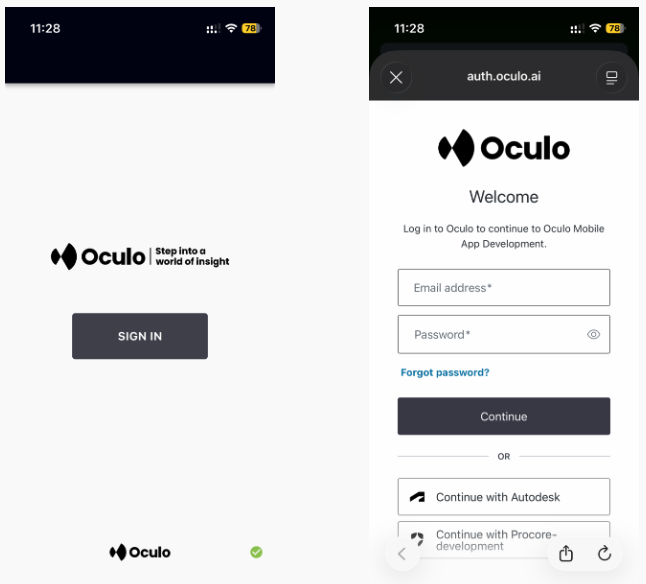
- When opening for the first time, select Sign In where you will be prompted to log in with your Oculo account details.
3. Syncing sites
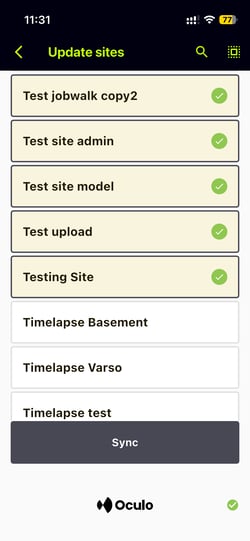
- You will be asked to sync your sites - please do this for any site that you wish to scan. Keeping sites synced ensures that the latest floor plans and configuration is available to you, and will need to be done when changes are made to your site.
- Select all the sites you wish to sync, then click Sync.
- Wait for the updates to finish - this may take some time the first time, as this step includes downloading of floor plans.
4. Active site selection
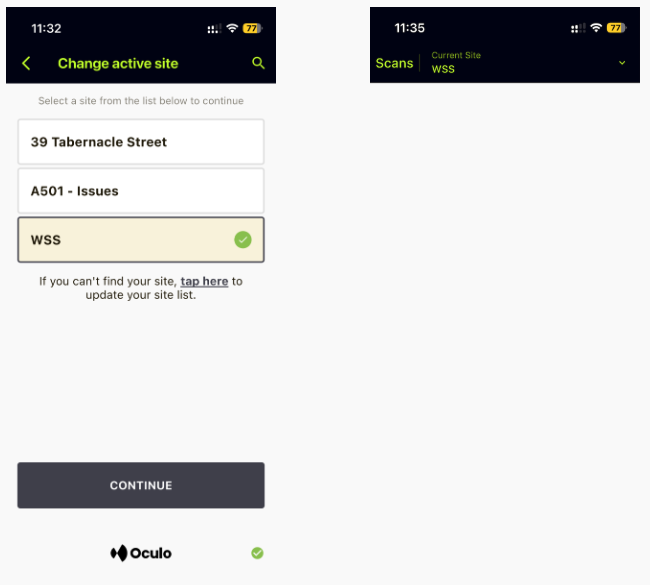
- The mobile app now allows you to select the Active site, which is the default site that will be used until you change it.
- You can see your Active site in the banned at the top of your app screen.
- You can change your Active site from the drop down menu next to your site name.
5. Action tabs
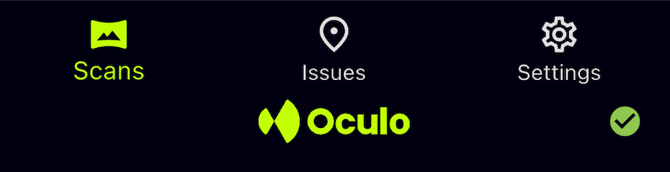
- You will see a tab menu at the bottom of the screen, with different options depending on your site's configuration. These can include:
- Scans - create new scan, and see recent history
-
- Issues - create a new issue (without scan), and see recent history
6. Creating a new scan
- Before starting, make sure your camera is switched on, your phone's Bluetooth connection, Wi-Fi connection, and GPS location (Android) functions are enabled. Also, make sure your camera is set up and prepared correctly, check our article if you need guidance on this.

- From the Scans action tab, select + NEW SCAN - remember this will select your Active site by default, if you need to change it do so before starting your scan.

- The app will show you a list of nearby cameras. Select the camera you are using from the list (usually there should just be one). Allow a few seconds for the app to connect with your camera. If you do not have Bluetooth or Wifi enabled at this stage, you will see a 'Check your connection' error page until you turn them on.
- If the app prompts you for a password to connect the camera, this can be found by following these steps on the camera: Swipe to reveal the menu > Go to settings (cog symbol) > Go to wifi settings > The password is there, insert that on the Oculo app.
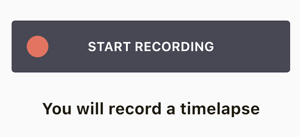
- Once connected, you will see the START RECORDING button. Press that.
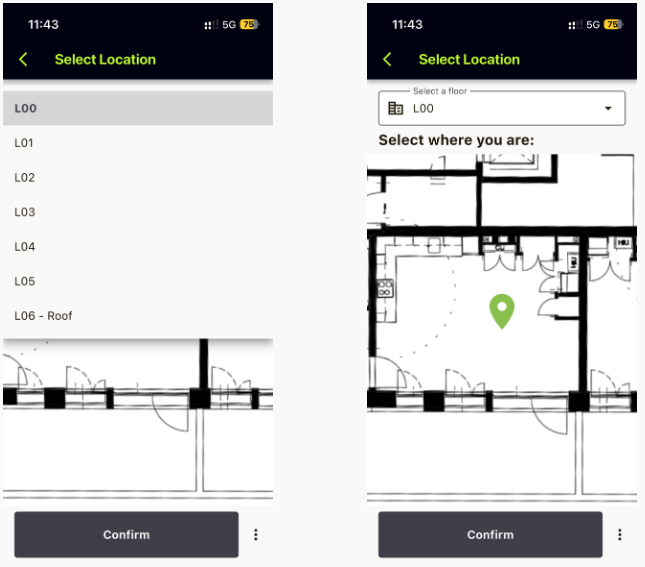
- Next you will be prompted to provide you starting location. First choose the correct floor plan from the drop down, then move the plan behind the pin until it is in the right location.

- Once you confirm your starting location, the camera automatically starts recording - you may hear a beep and the camera's light will go flashing red. Most importantly, your Oculo app screen will now be showing you a scan timer and the scan action buttons.
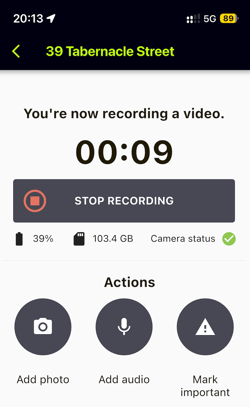
- When you are ready to stop your scan, click STOP RECORDING.
- Next you will be prompted to provide you stopping location. First choose the correct floor plan from the drop down, then move the plan behind the pin until it is in the right location.
- Once you have provided your location, you will be prompted to upload the data from the app and the camera. If you have scan mobile upload enabled, you will be able to do both from the app - otherwise the scan upload is done separately via your computer.

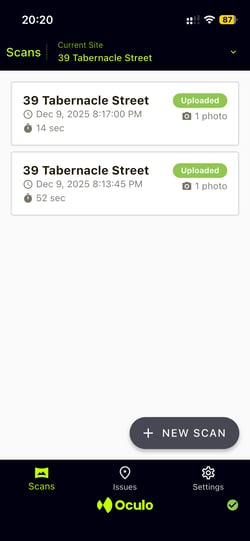
- Follow both upload steps to complete the scan. Once complete, click Continue to go back to Scan page where you will see the list of recently completed scans and their upload status.
7. Creating Issues
A - whilst scanning
- You can create Issues during your scan, which will be automatically located on your plans in your processed scan.
- To do this click the Add photo action button whilst scanning.
- This will open up a preview of your phone's camera, where you can take a photo.
- You can optionally add a description and a category by clicking the pencil icon.
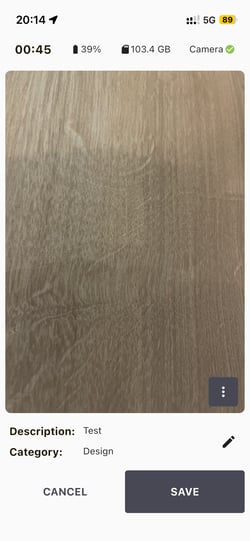
- Clicking SAVE will take you back to the scanning screen, where you can add another Issue or end your scan.
B - without scanning
You can also create an Issue from the app at any time from the Issues action tab, by clicking +CREATE ISSUE.
- You will be prompted to select the floor plan, then move the plan behind the pin until it is correctly located. Once it is, click Continue.

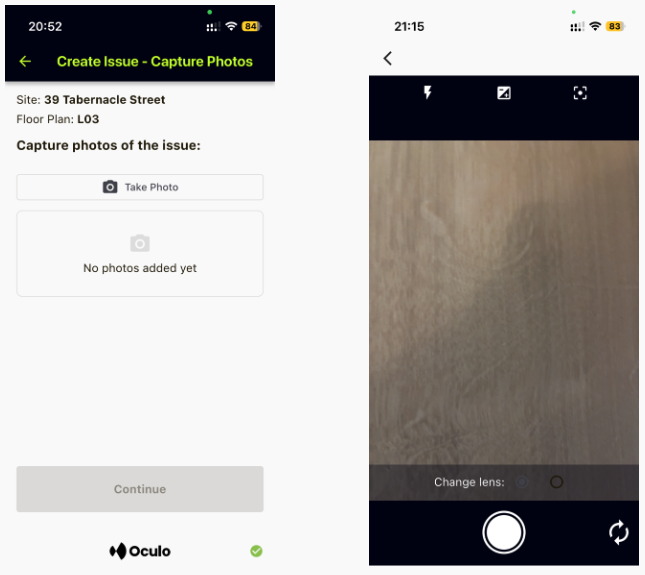
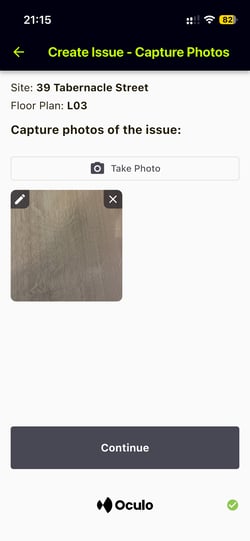
- Clicking Take Photo will open up a preview of your phone's camera, where you can take a photo, then review and press Continue.
- You can then optionally add a title, description and a category by clicking the pencil icon. Once you are happy with it, press Save Issue.
- This will take you back to the Issue action tab, where you can see recent Issue history, add another Issue, or close the app.