![Oculo Logo_Logo Full_Green_L.png]](https://help.oculo.ai/hs-fs/hubfs/Oculo%20Logo_Logo%20Full_Green_L.png?height=37&name=Oculo%20Logo_Logo%20Full_Green_L.png)
When would I use this?
- An issue sits close to a plot boundary and has been automatically assigned in the neighbouring area
- An issue has been automatically assigned to multiple areas because it sits in an overlapping area, but you want to choose just one
- You photographed something from an adjacent area, so need to reallocate it
- The Areas field shows Not within a defined area because the location is outside every defined area
Note: You need Admin permissions for Issues in order to update or revert an area assignment.
Overview
Oculo sets an issue's area automatically from where its pin sits on the floor plan. If that's wrong, you can pick the correct area yourself and switch back to the automatic one at any time.
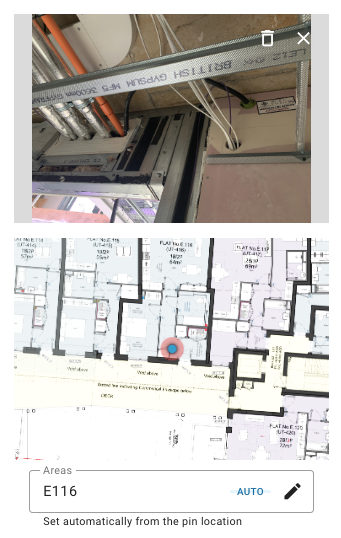
How to change an issue's area
- Open the issue from the Floor plan or Issue List tab on your site's Issues page.
- In the Areas field, click the pencil icon.
- Search for and select the correct area.
- Click Change area to confirm.
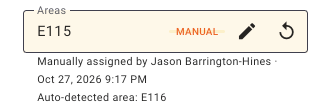
The field now shows a MANUAL tag with the name of the person who changed it and when. To undo it, click the circular-arrow icon next to the pencil, then Revert.
Important: A manual area stays fixed, even if the pin is moved or the area shapes are redrawn, until someone reverts it.
Things to bear in mind
- Lots of issues in the wrong area? The area shape is probably drawn wrong. Visit the Create Areas section of site settings to verify and update.
Need help? Contact help@oculo.ai if you have any questions about manually assigning issue areas.