![Oculo Logo_Logo Full_Green_L.png]](https://help.oculo.ai/hs-fs/hubfs/Oculo%20Logo_Logo%20Full_Green_L.png?height=37&name=Oculo%20Logo_Logo%20Full_Green_L.png)
Installing the Oculo app
-
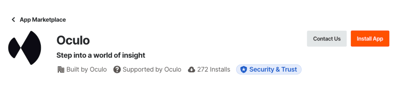
A Procore admin will need to install the Oculo app by signing in to Procore on their laptop browser, then from the homepage go to Apps > Marketplace > Install Apps > Search for and install the Oculo App

Configuring the Oculo app
-
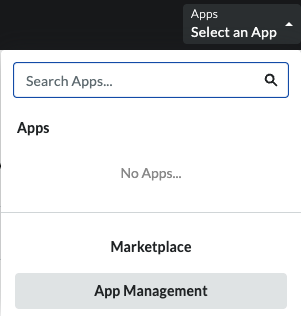
From the App dropdown menu, select App Management
-
Then select View for the Oculo app

-
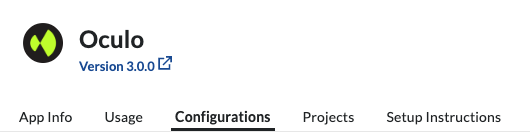
Select Configurations
-
Select Create Configuration

-
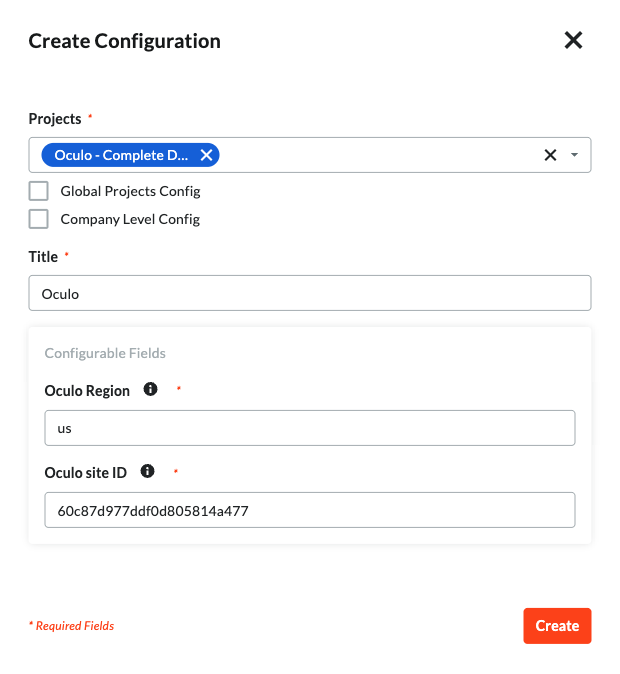
In the Create Configuration window:
-
Select the Project you are adding the app for
- Title the app (e.g. Oculo)
- Input your Oculo Region (uk, eu, or us)
- Input your Oculo Site ID - this can be found in the URL of your Oculo project: https://app.us.oculo.ai/sites/60c87d977abc0d805814a000
-
-
Click Create, and the configuration of the app is complete
Accessing the Oculo app
-
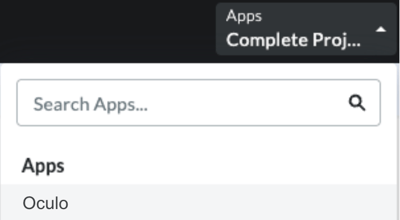
From your Procore project, go to Apps > Select your Oculo app
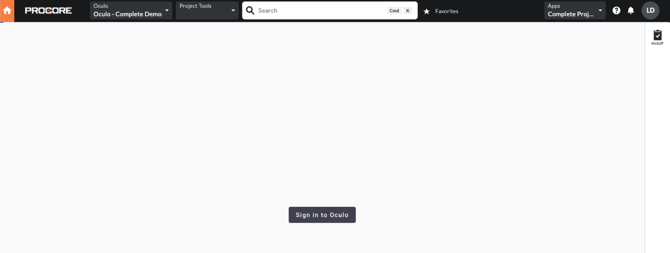
- Click Sign in to Oculo
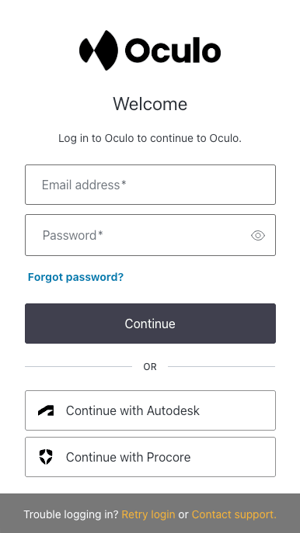
- If you have the full Procore integration enabled, then click Continue with Procore, otherwise use your Oculo credentials to sign in. If you are unsure which to use, speak to your project admin.
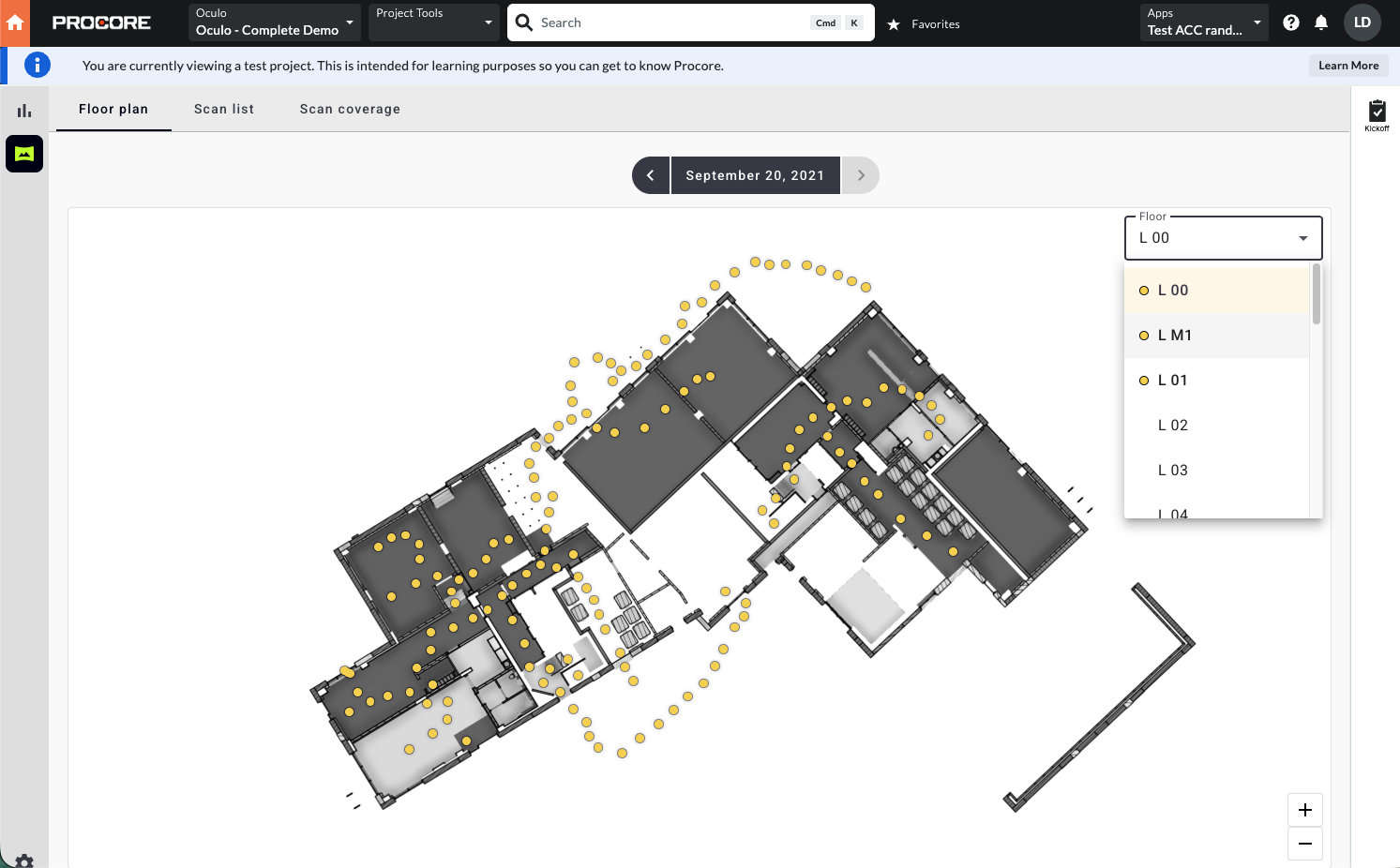
- Once signed in, you will be able to use Oculo from your Procore dashboard.
Please feel free to reach out to help@oculo.ai if you need support in configuring the Oculo app in Procore.