![Oculo Logo_Logo Full_Green_L.png]](https://help.oculo.ai/hs-fs/hubfs/Oculo%20Logo_Logo%20Full_Green_L.png?height=37&name=Oculo%20Logo_Logo%20Full_Green_L.png)
When a new scan is published, Oculo sends you an email so you can review it straight away. The email includes the site name, the date the scan was completed, and a direct link to open it in Oculo - no need to log in separately and go looking for it.
Tip: Notification settings are managed on the Site configuration page, and can be controlled for all users by a User Admin, or by individual users for their own account.
Enabling or disabling your own notifications
If you're not receiving scan notifications - or you'd like to turn them off - you can update your own preferences from the Site configuration page.
You can access the Site configuration page in 2 ways:
- Click the 3 dots on the Site tile from the Home Dashboard, then click Site configuration
- Click the 3 dots in the top right menu from the Site Dashboard, then click Site configuration
Once in Site configuration, go to the Email notifications tab. You'll see your own account listed in the table. Toggle notifications on or off using the switch next to your name.
Managing notifications for your whole team (User Admins only)
If you're a User Admin, you can manage notification settings for all users on a site from the same Email notifications tab in Site configuration.
The tab shows a table of all users with access to the site. You can:
- Toggle individual users on or off using the switch next to their name
- Use the Enable for all users or Disable for all users buttons at the top of the table to update everyone at once
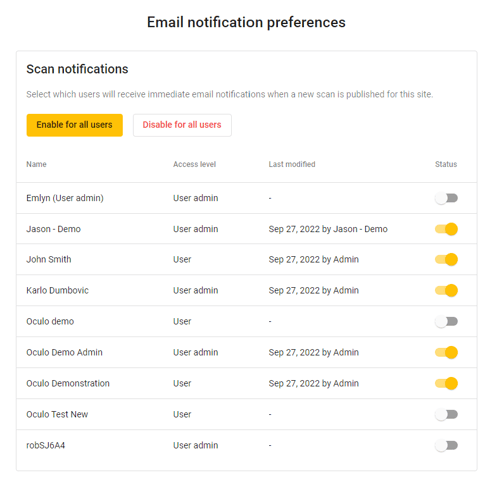
Tip: We'd encourage turning notifications on for all users — it's the easiest way to make sure your team stays on top of new scan activity and gets maximum value from Oculo.
Not receiving notifications?
If you're not getting scan notification emails, check the following:
- Your notifications are turned off - go to Site configuration > Email notifications and check your toggle is on
- Check your spam/junk folder - notification emails from Oculo may have been filtered, ensure help@oculo.ai and notifications@oculo.ai are whitelisted
Last updated: 6th April 2026