![Oculo Logo_Logo Full_Green_L.png]](https://help.oculo.ai/hs-fs/hubfs/Oculo%20Logo_Logo%20Full_Green_L.png?height=37&name=Oculo%20Logo_Logo%20Full_Green_L.png)
When would I use this?
Scan sharing groups let you control which scans specific users can see. Instead of giving a user access to all scans on a project, you can restrict their view to a curated subset - for example:
- Sharing a pre-construction condition survey with a client.
- Providing access to monthly scans, but restricting access to weekly.
- Providing a handover scan or handover pack to a client at project completion.
- Sharing a single scan or set of scans with a subcontractor to discuss a specific issue.
How this differs from scan and scene sharing
Oculo has two ways to share scan data with people outside your core team:
| Scan & scene sharing | Scan sharing groups | |
|---|---|---|
| Access method | Public link (no account needed) | Oculo account required |
| Who controls access | Anyone with the link | Admin assigns users to a role |
| Scope | Single scan or scene | One or multiple specific scans on a site |
| Access duration | Until link is revoked or expires | Until role is changed or removed |
| Typical use | Quick sharing with external parties | Ongoing restricted access for clients or contractors |
Before you begin
Setting up scan sharing groups requires admin access in two places:
- Account level: User Management Admin - to create permission roles with restricted scan access
- Site level: Site Management Admin -to create scan groups and link them to roles
Note: By default, no accounts have restricted-access permission roles. You need to create them before assigning users.
How it works
Scan sharing groups use three components that link together:
- Permission role (account level) - defines what a user can do and whether their scan access is Full or Restricted
- Scan group (site level) - a named list of scans linked to one or more permission roles
- User assignment - a user is given the permission role on a specific site, which determines which scan group they see
The three-step setup process is:
- Create a permission role with restricted scan access at the account level
- Create a scan group on the site and link it to that role
- Assign users to that role on the relevant site
Step 1: Create a permission role
Permission roles are managed at the account level, so changes apply across all sites in that account.
- Go to User Management → Permissions Management and select your account.
- Click Create role.
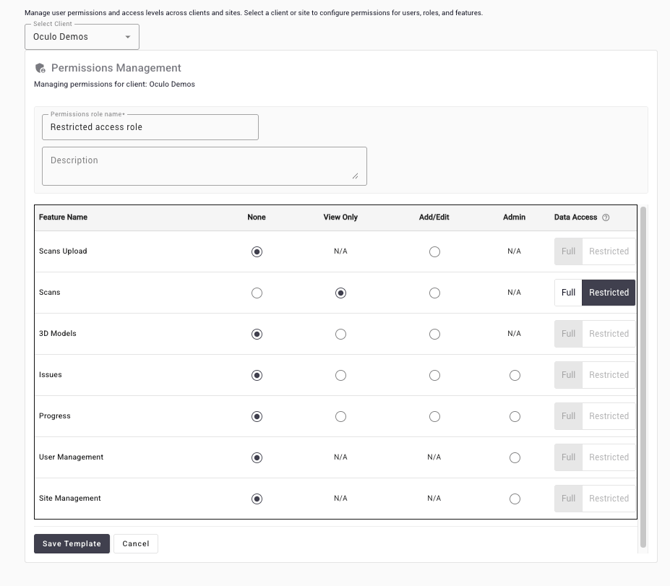
- Give the role a name (for example, Client Access).
- In the Data Access column for the Scans permission, choose Restricted. Then set the permission level - for most restricted roles, View only is appropriate.
- Optionally enable additional access:
- 3D view - allows BIM model access and comparisons against accessible scans
- Issues - allows the user to create and view issues
- Progress - can be enabled, though note that progress data may be limited if the user can't access all scans
- Click Save Template. The role is now available across all sites in this account.
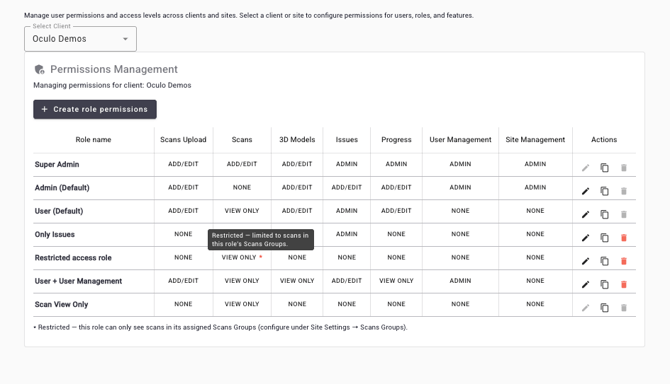
Tip: Roles with restricted scan access are marked with an asterisk (*) in the Scan permission column of the Permissions Management screen.
Step 2: Create a scan group on the site
Scan Groups are configured at the site level and define which scans a restricted role can access.
- Navigate to the site, then go to Settings → Site Config → Scan Groups.
- Click + Create group.
- Give the group a name - this is for your reference and does not need to match the permission role name.
- Select the permission role(s) that should have access to this Scan Group. You can link more than one role to the same group.

- Click Save.
- Click Assign scans to open a scan list, and select the scans you want to include in this group from the list, then click Save.
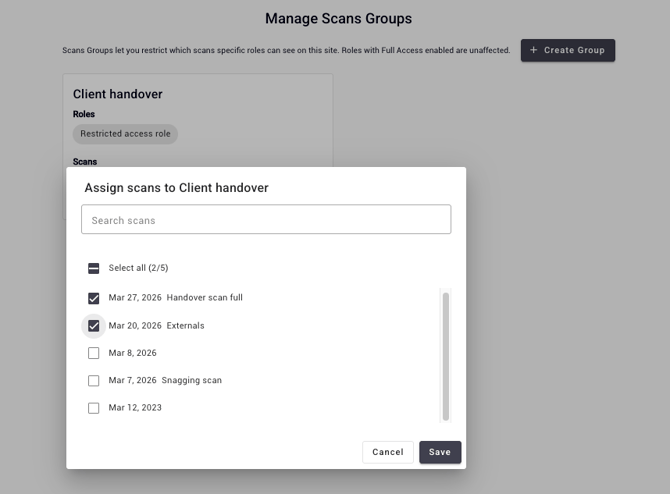
You can update the Scan Group scan list at any time - add or remove scans as the project progresses. Changes take effect immediately.
Step 3: Assign users to the permission role
Once the role and Scan Group are in place, assign users to the site with the restricted role.
- Go to User Management and find the user you want to assign, or click Add new user.
- Select the site you want to give them access to.
- Assign the restricted permission role to that user for that site.
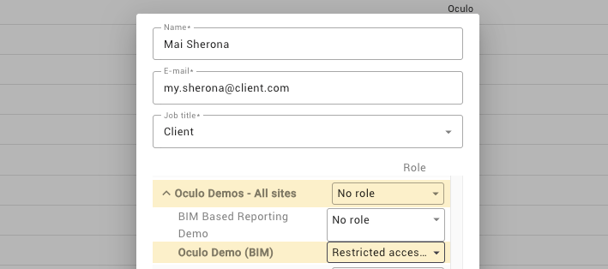
- Click Add new user.
A user can have different permission roles across different sites - for example, full access on one project and restricted access on another. Access is always scoped to the specific site the role is assigned to.
What the user sees
When a user with a restricted role logs in and opens the site:
- They see only the scans assigned to their Scan Group - not all scans on the site.
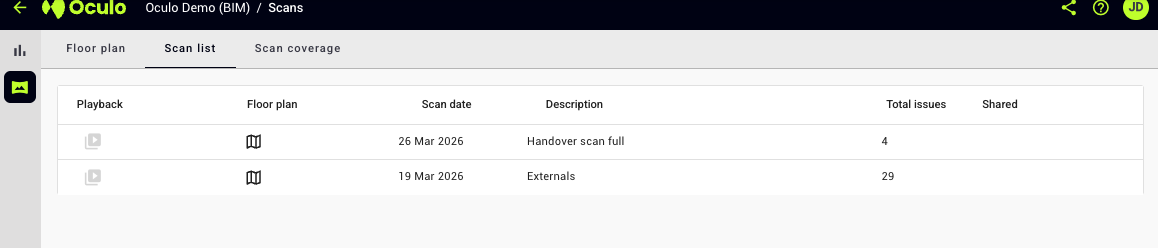
- The floor plan view shows coverage based on their accessible scans only.
- They can navigate the floor plan and use side-by-side scan comparison as normal.
- If the 3D view was enabled for their role, they can perform BIM comparisons against their scans.
- If Issue permissions were enabled, the Issue creation button and Issue module will be visible.
- Everything else in the platform works the same way - only the scan scope changes.
Important: If a user has been assigned a restricted permission role but no scan group has been created and linked to that role on the site, they will not be able to see any scans.
Managing scan groups
| Task | How to do it |
|---|---|
| Add scans to an existing group | Settings → Site Config → Scan Groups → select the group → add scans → Save |
| Remove scans from a group | Settings → Site Config → Scan Groups → select the group → deselect scans → Save |
| Add a role to an existing group | Edit the Scan Group and select the additional role |
| Remove a user's access | User Management → update the user → remove the role from the site |
| Change a role's permissions | Permissions Management → edit the role → update settings → Save |
Related articles
- Scan and scene sharing - sharing scans via public link (no Oculo account required)
- User management - adding and managing users across accounts and sites
Need help?
Contact help@oculo.ai if you have questions about Scan Group setup.